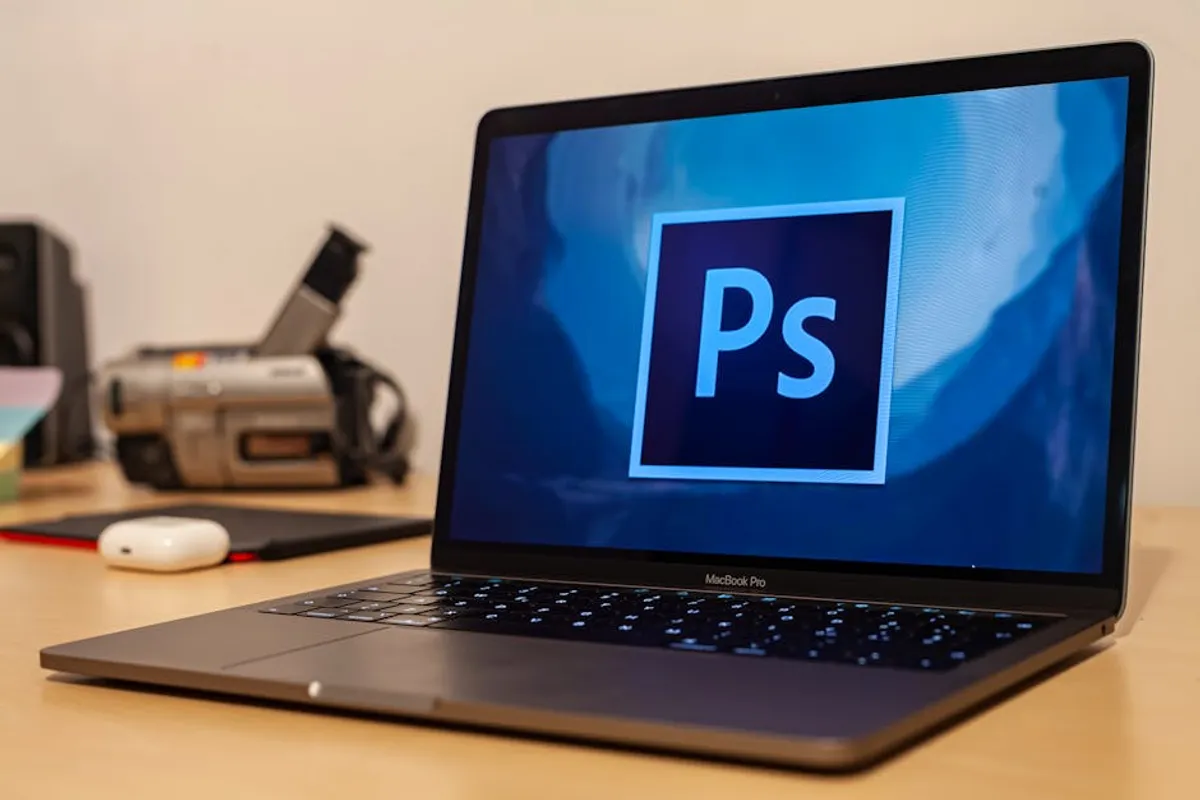
Adobe Photoshop 7.0, released in 2002, represented a professional benchmark for image manipulation and graphic design at the time. Its perpetual license model and robust feature set made it a staple for many. However, nearly two decades later, modern computing environments, advanced hardware capabilities, and evolving software development paradigms mean Photoshop 7.0 is no longer a viable solution for most users. Compatibility issues with current operating systems, lack of support for modern file formats, and the absence of contemporary features like AI-powered tools or cloud integration render it obsolete for professional workflows.
For those accustomed to Photoshop 7.0's capabilities but seeking a contemporary solution that runs efficiently on modern PCs, offers updated features, and handles current project demands, a range of alternatives exists. The decision to switch often hinges on specific needs: budget constraints (moving from a one-time purchase to subscription models or free software), operating system compatibility, the primary use case (photo retouching, digital painting, graphic design, web graphics), and the desired learning curve.
What to Look For in an Alternative
When transitioning from Photoshop 7.0, evaluate alternatives based on several critical factors to ensure they meet modern demands and integrate smoothly into your workflow:
- Core Functionality: Prioritize tools for layers, masks, selections, non-destructive editing, and image adjustments. Ensure the alternative offers a similar depth of control for raster image manipulation.
- Performance and Stability: Modern software should leverage multi-core processors and ample RAM. Look for applications that handle large files and complex projects without significant slowdowns or crashes.
- User Interface and Experience: While familiarity with Photoshop 7.0 is a factor, a modern, intuitive interface can streamline workflows. Consider how easily you can adapt to a new layout and command structure.
- File Format Compatibility: The ability to open and save common formats like JPEG, PNG, TIFF, and especially PSD (Photoshop Document) is crucial for collaboration and legacy project access. RAW file support is essential for photographers.
- Feature Set: Assess specific needs. Do you require advanced retouching tools, digital painting brushes, vector graphics integration, or AI-driven enhancements? Some alternatives specialize in certain areas.
- Pricing Model: Alternatives range from free and open-source to one-time purchases and subscription services. Align the cost with your budget and long-term usage expectations.
- Community and Resources: A strong user community, comprehensive documentation, and available tutorials can significantly ease the learning process and provide support.
1. GIMP
GIMP (GNU Image Manipulation Program) stands as a prominent free and open-source raster graphics editor. It has evolved significantly since Photoshop 7.0's era, offering a robust set of tools for image retouching, composition, and authoring. It runs on Windows, macOS, and Linux, making it a versatile choice for users seeking a powerful, no-cost solution without platform restrictions.
Key Features: Layers and channels, advanced selection tools, masks, filters and effects, customizable brushes, scripting capabilities (Python, Scheme, Perl), extensive file format support including PSD (with some limitations), and a modular plugin architecture.
Pricing: Free and open-source.
Best For: Budget-conscious users, Linux enthusiasts, students, and those needing advanced image manipulation without a subscription fee. It suits tasks from basic photo editing to complex graphic design.
Pros:
- No cost barrier, making it accessible to all users.
- Cross-platform compatibility (Windows, macOS, Linux).
- Highly customizable interface and functionality through plugins and scripts.
- Strong community support and extensive online tutorials.
- Powerful toolset for raster image editing, comparable to older Photoshop versions.
Cons:
- User interface can feel less intuitive or polished compared to commercial alternatives, especially for Photoshop veterans.
- Performance can sometimes lag on very large files or with numerous layers.
- CMYK support is primarily achieved through plugins, not native to the core application.
- Lacks certain advanced features found in modern subscription-based software, such as cloud integration or AI tools.
2. Affinity Photo
Affinity Photo by Serif is a professional-grade raster graphics editor designed to compete directly with Photoshop, offering a comprehensive suite of tools for photo editing, retouching, and digital painting. It distinguishes itself with a one-time purchase model, robust performance, and a non-destructive workflow across Windows, macOS, and iPad platforms.
Key Features: Non-destructive editing, RAW development workspace, live filter layers, advanced selection refinement, panorama stitching, HDR merge, focus stacking, 360-degree image editing, and full PSD import/export capabilities.
Pricing: One-time perpetual license fee per platform (Windows, macOS, iPad).
Best For: Professional photographers, graphic designers, and digital artists who require a powerful, feature-rich image editor without a recurring subscription. It's a strong choice for those prioritizing performance and a non-destructive workflow.
Pros:
- One-time purchase eliminates ongoing subscription costs.
- Exceptional performance, particularly with large files and complex operations.
- Comprehensive non-destructive editing capabilities, allowing flexibility in adjustments.
- Intuitive user interface that is often easier for Photoshop users to adapt to than GIMP.
- Strong support for professional features like RAW editing and 16-bit/32-bit per channel editing.
Cons:
- Lacks the extensive ecosystem of third-party plugins available for Photoshop.
- No integrated cloud storage or collaboration features like some subscription services.
- Learning resources, while growing, are not as vast as those for Photoshop.
- Does not offer vector design capabilities found in a full suite like CorelDRAW or Adobe Creative Suite.
3. CorelDRAW Graphics Suite (Photo-Paint)
CorelDRAW Graphics Suite is a comprehensive design package, with Corel Photo-Paint serving as its dedicated raster image editing component. While the suite is known for its vector graphics capabilities (CorelDRAW), Photo-Paint provides a robust environment for photo retouching, image enhancement, and bitmap creation. It offers a professional feature set often favored in the print and signage industries, available for Windows and macOS.
Key Features: Photo-Paint: AI-powered image upsampling, non-destructive effects, advanced color correction, healing clone tool, object removal, art media tools. Integration with CorelDRAW for seamless vector-raster workflows.
Pricing: Annual subscription or one-time perpetual license purchase options.
Best For: Graphic designers, illustrators, and print professionals who require a complete design ecosystem encompassing both vector and raster capabilities. It's particularly strong for those accustomed to a suite approach.
Pros:
- Part of a comprehensive suite, offering integrated vector and raster editing.
- Robust feature set for photo manipulation and enhancement within Photo-Paint.
- Perpetual license option provides an alternative to subscription models.
- Strong compatibility with industry-standard file formats, including PSD.
- Often used in specific print and signage workflows, providing industry relevance.
Cons:
- The full suite can be a higher initial investment compared to standalone photo editors.
- Photo-Paint, while powerful, might have a steeper learning curve for users new to the Corel ecosystem.
- The interface and workflow might feel less streamlined for pure photo editing compared to dedicated applications like Affinity Photo.
- Not as widely adopted in general creative industries as Photoshop, potentially limiting collaboration.
4. Krita
Krita is a free and open-source digital painting application primarily developed for illustrators, concept artists, comic book artists, and animators. While it possesses strong raster editing capabilities, its core focus is on creative drawing and painting. It runs on Windows, macOS, and Linux, providing a powerful and accessible tool for artists.
Key Features: Extensive brush engines (pixel, smudge, color smudge, filter, etc.), brush stabilizers, wrap-around mode for seamless textures, comic book management tools, animation tools (onion skinning), layer management, and a customizable user interface.
Pricing: Free and open-source.
Best For: Digital painters, illustrators, comic artists, and animators who need a dedicated tool for creative artwork. It's an excellent choice for those prioritizing drawing and painting features over traditional photo manipulation.
Pros:
- Completely free, offering professional-grade painting tools without cost.
- Exceptional brush engine, highly customizable for diverse artistic styles.
- Strong community support and frequent updates.
- Includes animation capabilities, expanding its utility for artists.
- Cross-platform availability (Windows, macOS, Linux).
Cons:
- Less optimized for general photo manipulation and retouching tasks compared to dedicated photo editors.
- The interface, while customizable, can be overwhelming for users primarily focused on simple image adjustments.
- Performance with very large image files can sometimes be a concern.
- Lacks some of the advanced selection and masking tools found in Photoshop for complex photo compositions.
5. Paint.NET
Paint.NET is a free image and photo editing software for Windows. Originally conceived as a free alternative to Microsoft Paint, it has evolved into a capable raster editor with support for layers, effects, and plugins. It strikes a balance between simplicity and functionality, making it suitable for users who need more than basic paint programs but don't require the full complexity of professional suites.
Key Features: Layers, unlimited undo history, a wide array of special effects, powerful tools for shape drawing, gradients, and selections, and extensibility through community-developed plugins.
Pricing: Free.
Best For: Windows users needing a lightweight, fast, and easy-to-learn image editor for basic photo adjustments, graphic design for web, and image manipulation. It's ideal for quick edits and users transitioning from simpler tools.
Pros:
- Completely free and lightweight, ensuring fast performance on most Windows PCs.
- Intuitive and clean user interface, making it easy for beginners to learn.
- Supports layers and non-destructive adjustments, enhancing editing flexibility.
- Extensible through a robust plugin ecosystem, adding more features.
- Active user community and readily available tutorials.
Cons:
- Exclusively available for Windows, limiting its use for macOS or Linux users.
- Lacks many advanced features found in professional image editors (e.g., advanced healing, RAW editing, CMYK support).
- Not suitable for complex graphic design projects or high-end photo retouching.
- Limited color management capabilities compared to professional tools.
6. Photopea
Photopea is a web-based raster and vector graphics editor that runs in a browser. It is specifically designed to mimic the interface and functionality of Photoshop, making it highly familiar for users transitioning from Adobe's software. Its web-based nature means it's accessible from any modern PC with an internet connection, regardless of operating system.
Key Features: Comprehensive layer support, masks, smart objects, blend modes, filters, text tools, vector shape tools, and extensive file format compatibility including PSD, AI, XD, Sketch, PDF, and RAW files.
Pricing: Free with ads; premium subscription available for an ad-free experience and additional features.
Best For: Users seeking a highly accessible, Photoshop-like experience without software installation, ideal for quick edits, cross-platform use, or collaborative projects. It's particularly useful for those on Chromebooks or public computers.
Pros:
- Web-based, requiring no installation and accessible from any OS with a browser.
- Highly familiar user interface for Photoshop users, reducing the learning curve significantly.
- Excellent compatibility with PSD files, allowing seamless opening and editing of Photoshop projects.
- Supports a wide range of file formats, including RAW.
- Available for free, with an option to remove ads for a small fee.
Cons:
- Requires a stable internet connection to function.
- Performance can be dependent on browser capabilities and internet speed, potentially slower than desktop applications.
- The free version includes advertisements, which can be distracting for some users.
- Advanced features might not be as robust or optimized as dedicated desktop software.
7. Pixelmator Pro
Pixelmator Pro is a powerful image editor exclusively for macOS, known for its modern, single-window interface and integration of machine learning features. It offers a comprehensive set of tools for photo editing, graphic design, and painting, leveraging Apple's Metal graphics technology for high performance. It aims to provide a professional-grade experience with a focus on user-friendliness and innovation.
Key Features: Non-destructive editing, machine learning-powered tools (e.g., ML Super Resolution, ML Enhance, ML Denoise), a full suite of color adjustments, retouching tools, vector tools, digital painting brushes, and extensive RAW file support.
Pricing: One-time perpetual license fee.
Best For: macOS users, particularly those in the Apple ecosystem, who require a modern, high-performance image editor for photography, graphic design, and digital art. It's suitable for professionals and enthusiasts seeking advanced features without a subscription.
Pros:
- Modern, intuitive, and highly refined user interface specifically designed for macOS.
- Leverages machine learning for intelligent image enhancements and automation.
- Exceptional performance due to optimization for Apple hardware and Metal graphics.
- Non-destructive editing workflow for flexibility and control.
- One-time purchase model, avoiding recurring subscription costs.
Cons:
- Exclusively available for macOS, making it unsuitable for Windows or Linux users.
- Lacks the extensive third-party plugin ecosystem of Photoshop.
- While powerful, it may not be as widely adopted in large agencies or collaborative environments as Photoshop.
- Less focused on industrial-scale graphic design or complex print production compared to a full suite.
How to Choose the Right Alternative
Selecting the best Photoshop 7.0 alternative involves aligning software capabilities with your specific workflow and budget. First, define your primary use case: Is it photo retouching, digital painting, web graphics, or print design? Tools like Affinity Photo excel in photo editing, while Krita is tailored for digital painting. If you need a comprehensive suite including vector capabilities, CorelDRAW Graphics Suite is a strong contender. For quick, accessible edits, Photopea's web-based approach is convenient. Consider your operating system: Pixelmator Pro is a macOS exclusive, while Paint.NET is Windows-only. Finally, evaluate the pricing model: free options like GIMP and Krita offer robust features, while one-time purchases like Affinity Photo and Pixelmator Pro provide professional capabilities without recurring fees. Test trials are often available and provide practical insight into the user experience and feature set before committing.
FAQ
Can I open Photoshop 7.0 files in these alternatives?
Most modern alternatives, including Affinity Photo, Photopea, GIMP, and Corel Photo-Paint, offer good compatibility with PSD files. However, very old or complex features from Photoshop 7.0 might not always translate perfectly, especially if they rely on proprietary Adobe technologies not replicated in other software.
Are free alternatives powerful enough for professional work?
Yes, free alternatives like GIMP and Krita are highly capable and used by professionals for various tasks. Their suitability depends on the specific demands of the work. For advanced photo retouching, GIMP offers deep functionality, while Krita provides professional-grade painting tools. The main trade-offs often involve user interface polish, specific proprietary features, or extensive third-party plugin ecosystems.
Do any alternatives offer cloud integration or collaboration features?
Most desktop alternatives mentioned focus on local file management and don't inherently offer the same level of cloud integration or real-time collaboration as modern subscription-based services. Photopea, being web-based, offers inherent accessibility and easier sharing. For cloud-centric workflows, you might need to integrate with external cloud storage services or explore other platforms.
Is a subscription model necessary for modern image editing?
No, a subscription model is not necessary. As demonstrated by alternatives like Affinity Photo, Pixelmator Pro, and CorelDRAW Graphics Suite (with its perpetual license option), professional-grade image editing software is still available through one-time purchases. Free and open-source options also provide powerful tools without any cost. The choice depends on your preference for ongoing updates versus fixed costs and access to specific proprietary features.