

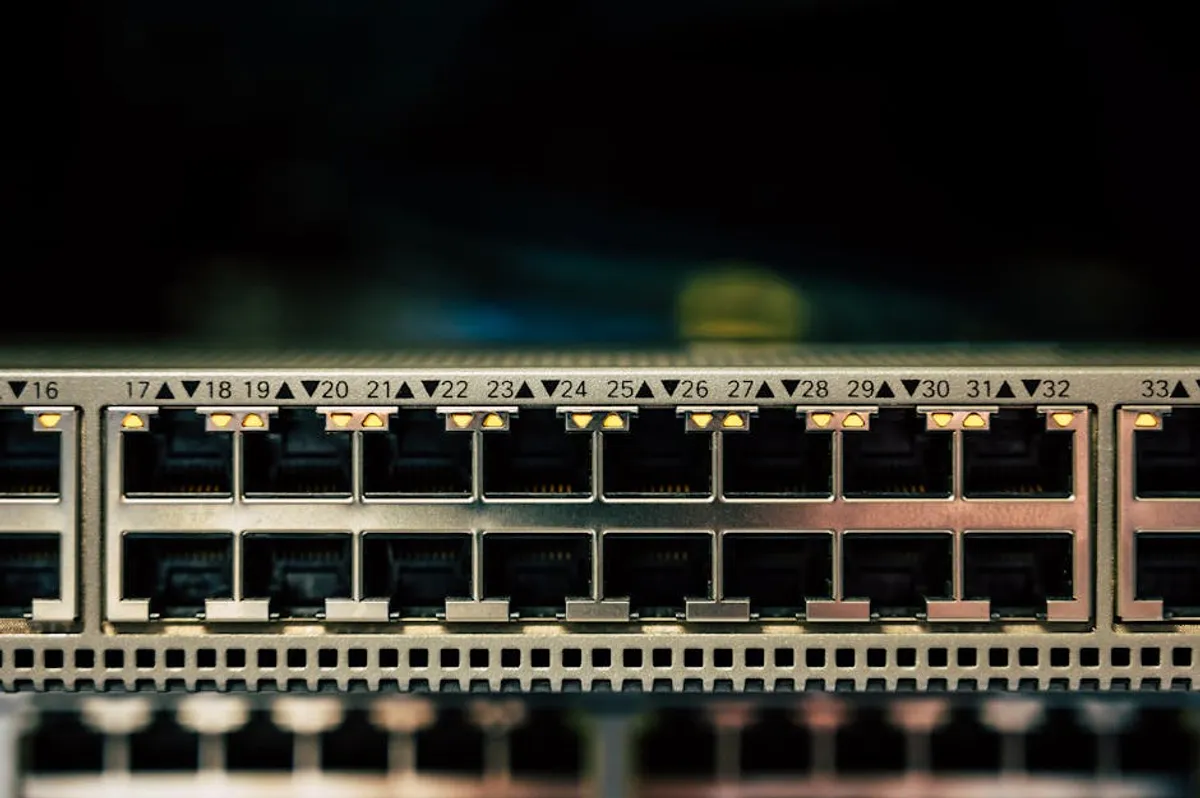
Cisco Packet Tracer stands as a foundational simulation tool for anyone navigating the complexities of network design, configuration, and troubleshooting. For IT professionals, students, and educators, it provides a virtual sandbox to experiment with Cisco networking equipment without the need for expensive physical hardware. Understanding its capabilities and ensuring a secure, correct installation are critical first steps to leveraging its full potential in skill development and practical application. Understanding its capabilities and ensuring a safe and correct installation are critical first steps to leveraging its full potential in skill development and practical application.
Understanding Cisco Packet Tracer
Cisco Packet Tracer is a network simulation software developed by Cisco Systems. It allows users to create network topologies, configure various Cisco devices (routers, switches, wireless access points, firewalls), and simulate network traffic. Its primary purpose is to provide a hands-on learning environment for networking concepts, particularly for those pursuing Cisco certifications like CCNA (Cisco Certified Network Associate).
Key Features and Capabilities
The software offers a range of features designed to replicate real-world networking scenarios. These include a comprehensive library of virtual devices, support for various networking protocols (e.g., OSPF, EIGRP, BGP, STP, VLANs), and a realistic command-line interface (CLI) for device configuration. Users can build complex networks, observe data flow in real-time, and identify potential issues through simulation. It also integrates a multi-user collaboration feature, enabling remote team projects and shared learning experiences.
Practical Applications
Best for: Network design, protocol understanding, troubleshooting practice, certification exam preparation.
Beyond academic use, Packet Tracer is valuable for IT professionals looking to prototype network changes, test configurations before deployment on live systems, or simply refresh their skills. Its visual interface helps in understanding abstract networking concepts by demonstrating their practical effects. For businesses, while not a production tool, it serves as an excellent environment for training new staff or exploring network architecture improvements in a risk-free setting.
Obtaining Cisco Packet Tracer Safely
Secure installation begins with sourcing the software from legitimate channels. Unofficial downloads carry risks, including malware, outdated versions, or incomplete packages that can compromise system security and functionality.
Official Download Sources
The primary and safest source for Cisco Packet Tracer is the Cisco Networking Academy website. Access typically requires enrollment in a Networking Academy course or creation of a free NetAcad account. This ensures you receive the latest, official version directly from Cisco, complete with necessary licensing and support.
Account Requirements
To download Packet Tracer, you generally need an active Cisco Networking Academy account. Creating a free account usually involves registering for an introductory course (such as "Introduction to Packet Tracer"). This process is straightforward and grants access to the download links, along with tutorials and learning resources.
Pro Tip: Always verify the download source URL begins with "" before initiating any download. Avoid third-party software repositories or torrent sites, as these are common vectors for distributing compromised software.
Step-by-Step Installation Process
Once downloaded, the installation process is relatively standard across operating systems. Adhering to system requirements and following the installer prompts carefully will ensure a smooth setup.
System Requirements Checklist
Before installation, confirm your system meets the minimum specifications:
- Operating System: Windows 8.1, 10, 11 (64-bit); macOS 10.14 or later; Ubuntu 20.04 LTS (64-bit).
- CPU: Intel Pentium 4, 2.53 GHz or equivalent.
- RAM: 4 GB minimum.
- Disk Space: 1.4 GB available for installation.
- Display: 1024 x 768 resolution.
Installation Walkthrough (Windows/macOS)
1. Download the Installer: From the Cisco Networking Academy, select the correct installer for your operating system.
2. Run the Installer: Locate the downloaded executable (.exe for Windows,.dmg for macOS) and run it. You may need administrative privileges.
3. Accept EULA: Read and accept the End-User License Agreement.
4. Choose Installation Location: The default location is usually acceptable. For Windows, it's typically "C:\Program Files\Cisco Packet Tracer". For macOS, it installs into the Applications folder.
5. Complete Installation: Follow the on-screen prompts. The process usually takes a few minutes.
6. Desktop Shortcut (Optional): The installer often offers to create a desktop shortcut. This is convenient for quick access.
First Launch and Configuration
Upon the first launch of Packet Tracer, you will typically be prompted to log in with your Cisco Networking Academy credentials. This step is crucial for activating the software and accessing its full features. Ensure you have an active internet connection for this initial authentication. After successful login, you can begin using the simulation environment.
Post-Installation Best Practices
Maintaining a secure and functional Packet Tracer environment involves a few ongoing considerations.
Security Considerations
While Packet Tracer itself is generally secure, ensuring your operating system's firewall is configured correctly is important. If you encounter connectivity issues with multi-user activities, you may need to add an exception for Packet Tracer. However, always exercise caution and only allow necessary network access. Regularly update your operating system and antivirus software to protect against broader system vulnerabilities that could impact any installed application.
Updating and Maintenance
Cisco periodically releases updates for Packet Tracer to add new features, fix bugs, and improve device simulation accuracy. Check for updates within the application (often under "Help" -> "Check for Updates") or by revisiting the Cisco Networking Academy website. Keeping your installation current ensures compatibility with the latest course materials and provides the most stable experience. Keeping your installation current ensures compatibility with the latest course materials and provides the most stable experience, showing why keeping software updated matters.
Maximizing Your Packet Tracer Experience
To truly benefit from Cisco Packet Tracer, consistent engagement is key. Start with the built-in tutorials and sample labs available within the Networking Academy resources. These structured exercises guide you through basic configurations and network designs. Experiment with different device types and protocol settings to observe their behavior. The simulation environment is designed for exploration and learning from mistakes without real-world impact, making it an ideal space for developing practical networking skills.
Frequently Asked Questions
Is Cisco Packet Tracer free to use?
Yes, Cisco Packet Tracer is available for free to anyone who registers for a Cisco Networking Academy account, typically by enrolling in a free introductory course.
What are the common issues during installation?
Common issues include not meeting system requirements, downloading from unofficial sources, or failing to log in with a valid NetAcad account upon first launch. Ensure your internet connection is stable for the initial login.
Can Packet Tracer replace real networking hardware?
While Packet Tracer is an excellent simulation tool for learning and practice, it cannot fully replace real networking hardware. It provides a highly accurate simulation but lacks the full complexity and nuances of physical devices and real-world network conditions.
How often should I update Packet Tracer?
It is advisable to check for updates periodically, especially when new versions are released or when you begin a new course that might require specific features or bug fixes present in a newer version.



