

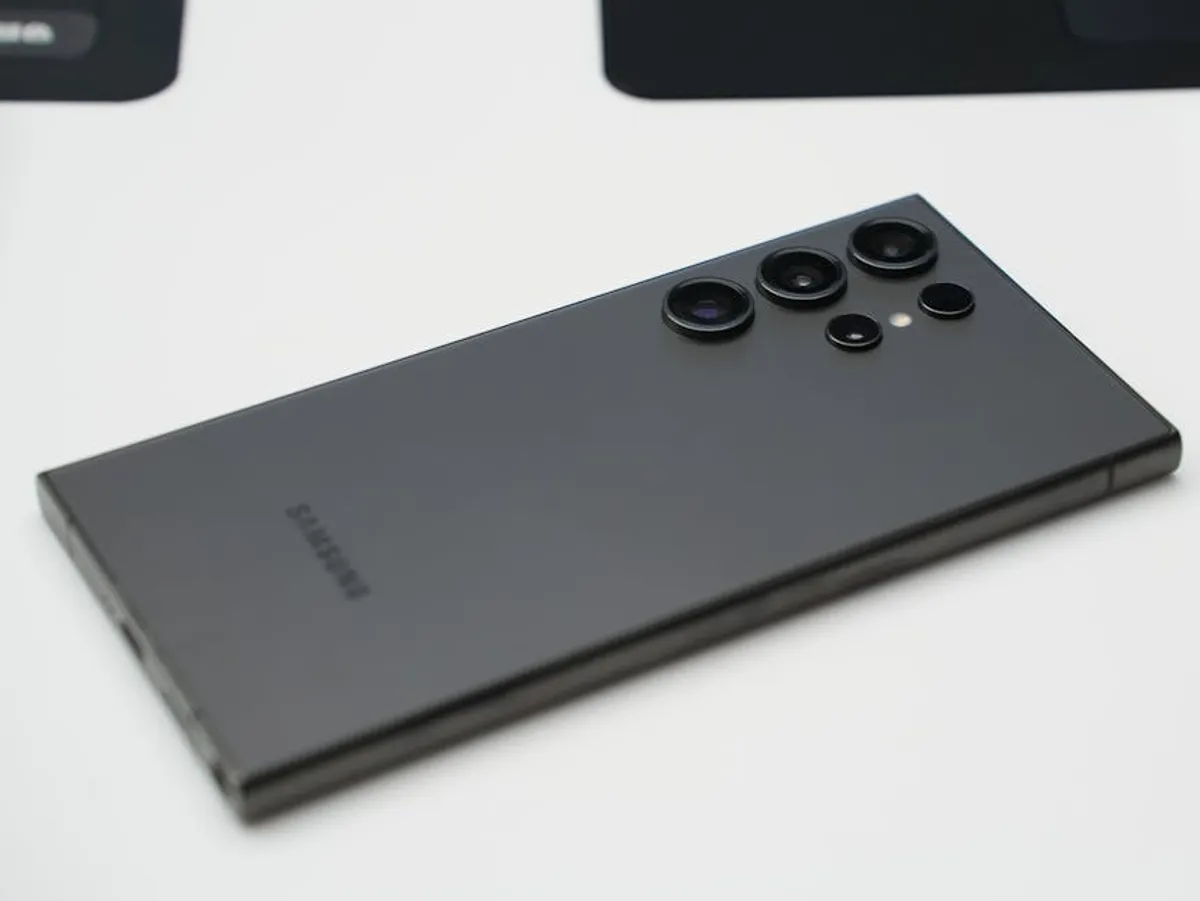
Updating your Samsung device’s firmware is a critical maintenance task that enhances security, introduces new features, and optimizes performance. However, proceeding without proper precautions can lead to data loss, device malfunction, or even render your phone inoperable. This guide outlines the official and commonly used methods for Samsung firmware updates, emphasizing the necessary steps to ensure a safe and successful process, regardless of your technical comfort level.
Understanding Firmware and Update Methods
Firmware is the low-level software that controls your device's hardware, acting as the operating system's foundation. Keeping it current is essential for compatibility with new applications, patching security vulnerabilities, and improving overall system stability. Samsung provides several avenues for updating, each with varying levels of complexity and risk.
Over-The-Air (OTA) Updates
The most straightforward and recommended method, OTA updates are delivered directly to your device by Samsung. These updates are typically incremental, meaning they only download and install changes rather than the entire firmware package. This method is designed for user convenience and safety.
- Convenience: Requires minimal user intervention.
- Safety: Verified by Samsung, reducing the risk of errors or corrupted files.
- Accessibility: Available directly through your device's settings menu.
Samsung Smart Switch
Smart Switch is Samsung's official desktop application for Windows and macOS, designed for data backup, restoration, and firmware updates. It provides a more controlled environment for updates compared to OTA, especially if your device has connectivity issues or if an OTA update has failed previously. Smart Switch downloads the full firmware package, ensuring a clean installation. Smart Switch is one of many useful tools for device maintenance that can help keep your Samsung phone running smoothly.
- Reliability: Official Samsung tool, offering a stable update channel.
- Backup Integration: Facilitates easy data backup before updating.
- Troubleshooting: Can resolve issues when OTA updates are problematic.
Manual Firmware Flashing (ODIN)
This method involves using a third-party tool called ODIN to manually install firmware files onto your Samsung device. While not officially supported by Samsung for general consumer use, it is widely utilized by advanced users for specific scenarios like downgrading firmware, installing region-specific updates early, or recovering a bricked device. This method carries the highest risk and demands precise execution.
- Control: Allows installation of specific firmware versions.
- Recovery: Useful for repairing software issues or unbricking devices.
- Risk: Improper use can lead to permanent device damage or data loss.
Essential Pre-Update Preparations
Before initiating any firmware update, especially manual flashing, several critical steps must be taken to safeguard your data and device integrity.
Data Backup
Regardless of the update method, always back up your device data. While OTA and Smart Switch updates are generally safe for data, unforeseen issues can occur. Manual flashing carries a higher risk of data wipe.
- Cloud Services: Use Samsung Cloud, Google Drive, or other cloud platforms for contacts, photos, and app data.
- Smart Switch: Perform a full backup of your device to your computer using the Smart Switch application.
- Manual Backup: Transfer important files directly to a computer or external storage.
Battery Charge
Ensure your device is fully charged, or at least above 80% battery capacity. An interrupted update due to power loss can corrupt the firmware and damage the device.
Stable Internet Connection
For OTA and Smart Switch updates, a stable Wi-Fi connection is crucial to prevent download interruptions and data corruption. Avoid using mobile data for large firmware downloads.
Identify Correct Firmware (for Manual Flashing)
If you opt for manual flashing, obtaining the correct firmware package is paramount. Firmware files are specific to your device model (e.g., SM-G998B for Galaxy S21 Ultra EMEA) and region/carrier (CSC code). Installing incorrect firmware can soft-brick your device or render certain features non-functional.
Pro Tip: To find your exact model number, navigate to Settings > About phone. Your model number (e.g., SM-G990B/DS) and software information (including baseband version and build number) are crucial for sourcing the correct firmware. Always cross-reference the firmware's CSC (Country Specific Code) with your device's region to ensure full compatibility.
Step-by-Step Update Procedures
Updating via OTA
- Ensure your device is connected to a stable Wi-Fi network and has sufficient battery.
- Open your device's Settings app.
- Scroll down and tap on Software update or System updates.
- Tap Download and install.
- If an update is available, follow the on-screen prompts to download and install it. Your device will restart during the process.
Updating via Samsung Smart Switch
- Download and install Samsung Smart Switch on your Windows PC or Mac.
- Launch Smart Switch and connect your Samsung device to your computer using a reliable USB cable.
- Smart Switch will automatically detect your device. If an update is available, you will see an "Update" button or notification.
- Click Update and follow the instructions to download and install the firmware. The device will restart automatically.
- Do not disconnect your device until the process is complete and Smart Switch confirms success.
Updating via ODIN (Manual Flashing)
This method requires careful attention to detail. Proceed only if you understand the risks.
- Download ODIN: Obtain the latest stable version of the ODIN flash tool from a reputable source.
- Download Firmware: Source the correct firmware package for your device model and region from verified platforms. Firmware files are typically compressed (e.g.,.zip,.tar.md5) and contain multiple components (AP, BL, CP, CSC, HOME_CSC).
- Extract Firmware: Unzip the downloaded firmware file. You will find files like AP_[device_model].tar.md5, BL_[device_model].tar.md5, CP_[device_model].tar.md5, and CSC_[device_model].tar.md5 (or HOME_CSC).
- Enter Download Mode:
- Power off your Samsung device completely.
- Press and hold the Volume Down + Power + Bixby (or Home, depending on model) buttons simultaneously.
- When you see a warning screen, release the buttons and press Volume Up to continue into Download Mode.
- Connect to PC: Connect your device to your computer using a USB cable. ODIN should display "Added!!" in the Log box and show a blue or green COM port ID, indicating successful connection.
- Load Firmware Files in ODIN:
- Click the BL button in ODIN and select the BL file from your extracted firmware.
- Click the AP button and select the AP file. This file is usually the largest.
- Click the CP button and select the CP file.
- Click the CSC button. Use the CSC file if you want to perform a clean install that wipes data. Use the HOME_CSC file if you want to retain your data (though a backup is still essential).
- Verify ODIN Options: Ensure only "Auto Reboot" and "F. Reset Time" are checked under the "Options" tab. Do not check "Re-Partition" unless specifically instructed by a reliable guide for a particular recovery scenario.
- Start Flashing: Click the Start button in ODIN. The process will take several minutes. Do not disconnect your device or interact with your computer until ODIN displays "PASS!" in a green box.
- Device Reboot: Your device will automatically reboot into the newly flashed firmware. The first boot may take longer than usual.
Post-Update Verification and Maintenance
After a successful firmware update, a few steps can ensure optimal performance and confirm the update's integrity.
Verify Firmware Version
Go to Settings > About phone > Software information to confirm that the new firmware version is installed.
Clear Cache Partition
Clearing the cache partition can resolve lingering performance issues or app crashes that sometimes occur after a major update. This process does not delete your personal data.
- Power off your device.
- Press and hold the Volume Up + Power + Bixby (or Home, depending on model) buttons simultaneously until the Samsung logo appears.
- Release the buttons to enter Recovery Mode.
- Use the Volume Down button to navigate to "Wipe cache partition" and select it with the Power button.
- Confirm the action.
- Once complete, select "Reboot system now."
Ensuring a Smooth Firmware Update Experience
Updating your Samsung firmware safely is a process that prioritizes preparation and adherence to established procedures. For most users, OTA updates and Smart Switch offer reliable, secure methods. Manual flashing via ODIN provides advanced control but demands a thorough understanding of the risks and precise execution. By following these guidelines, you can ensure your device remains secure, performs optimally, and avoids unnecessary complications. For those seeking more granular control, Odin provides a powerful option, and there are specific details about what Samsung users should know before proceeding.
Frequently Asked Questions
Why is my Samsung device not receiving OTA updates?
Several factors can prevent OTA updates, including insufficient storage, a weak Wi-Fi connection, a modified device (rooted or custom ROM), or your region/carrier not yet releasing the update. Try updating via Smart Switch on a computer if OTA fails.
Will updating firmware delete my data?
OTA updates and Smart Switch typically do not delete personal data. However, manual flashing (especially if using the full CSC file in ODIN) can wipe your device. Regardless of the method, always perform a full backup beforehand to prevent data loss.
What if my device gets stuck during an update?
If your device gets stuck during an OTA or Smart Switch update, do not disconnect it or force a restart unless absolutely necessary. Wait for an extended period. If it remains stuck, perform a force restart (usually Volume Down + Power for 7-10 seconds). If the device enters a boot loop or fails to start, you may need to attempt a manual reflash using Smart Switch's emergency recovery feature or ODIN.
Can I downgrade my Samsung firmware?
Downgrading firmware is generally not supported by Samsung and can be complex. It often requires manual flashing via ODIN and may lead to security vulnerabilities or compatibility issues with newer apps. Additionally, Samsung sometimes implements "anti-rollback" features that prevent downgrading to older, less secure firmware versions.



