

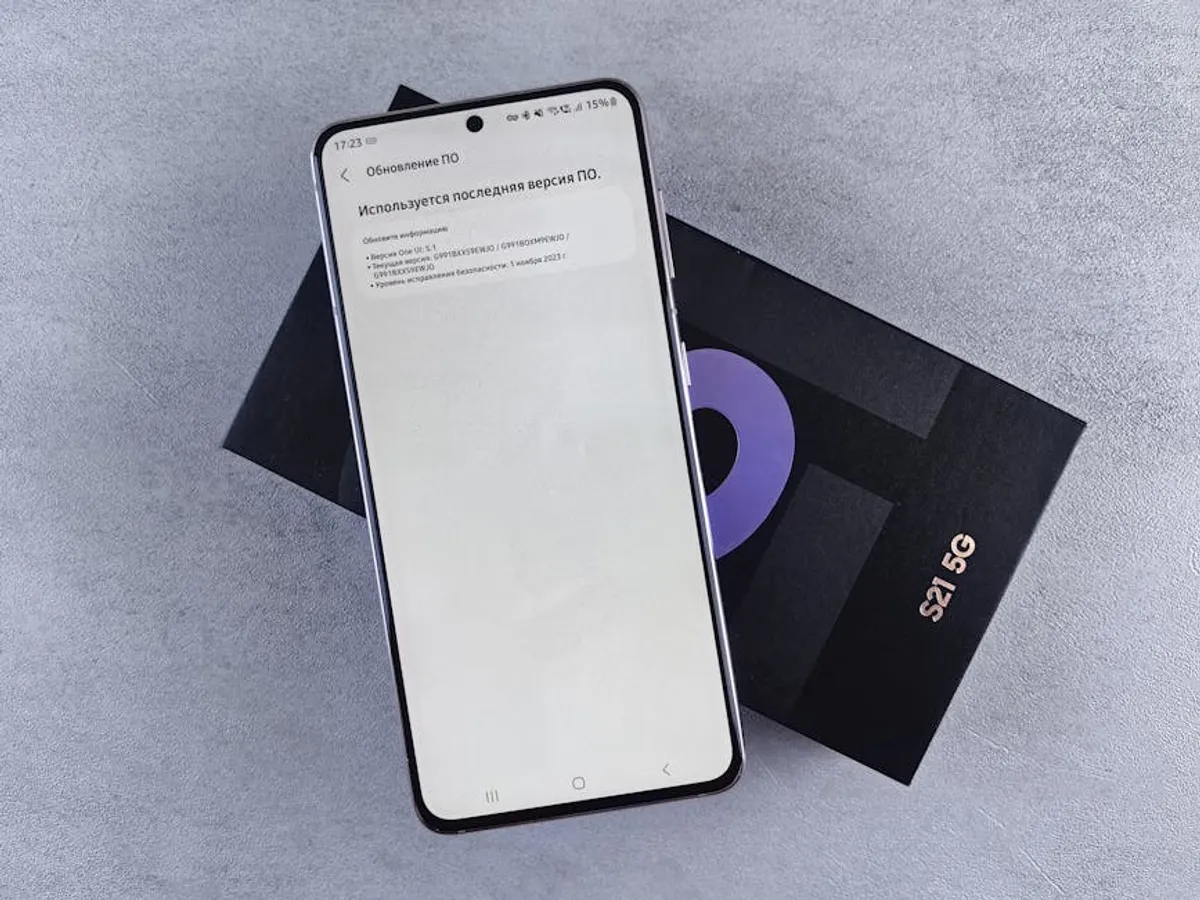
Understanding Samsung device firmware extends beyond basic user updates; it’s a foundational technical insight for anyone managing, troubleshooting, or strategically deploying these ubiquitous devices. For professionals overseeing device fleets, supporting user bases, or even analyzing technical specifications for commercial purposes, grasping firmware mechanics is critical. It impacts device security, performance, and feature availability, directly influencing user experience and operational efficiency. This guide demystifies Samsung firmware, offering a practical overview of its role, update processes, and essential considerations for beginners. For advanced users, understanding the specifics of using Odin can unlock further control and customization options.
What is Samsung Firmware?
Firmware is the permanent software programmed into a hardware device, providing low-level control over its specific hardware components. In Samsung smartphones and tablets, firmware acts as the operating system (Android, in most cases), coupled with device-specific drivers, core applications, and the bootloader. It dictates how the hardware functions, communicates, and interacts with higher-level software. Unlike standard applications, firmware is deeply integrated and less frequently updated, but its updates are often more impactful, addressing core system stability and security.
Why Firmware Management is Crucial
Proactive firmware management offers substantial benefits, particularly in environments where device reliability and security are paramount:
- Enhanced Security: Firmware updates frequently patch critical vulnerabilities that could otherwise be exploited, safeguarding sensitive data and maintaining device integrity. For organizations, this is a non-negotiable aspect of data protection and compliance.
- Improved Performance and Stability: New firmware versions often include optimizations for battery life, processor efficiency, and overall system responsiveness. They also address bugs and glitches present in previous releases, leading to a more stable user experience.
- Access to New Features: Major Android version upgrades, delivered via firmware, introduce new functionalities, user interface enhancements, and compatibility with emerging technologies. This extends the useful life and capabilities of devices.
- Troubleshooting and Recovery: In cases of severe software corruption, boot loops, or persistent performance issues, reflashing the firmware can often restore a device to a functional state, avoiding costly hardware replacements or extensive repairs.
- Device Lifecycle Optimization: Understanding firmware allows for better planning of device lifecycles, ensuring devices remain supported, secure, and performant for their intended duration, which is vital for budget forecasting and asset management.
Identifying Your Samsung Device and Current Firmware
Before any firmware operation, accurately identifying your device model and current firmware details is essential to ensure compatibility and prevent errors. This information is typically found within the device settings:
- Navigate to Settings.
- Scroll down and tap on About phone (or About tablet).
- Note the Model name and Model number (e.g., SM-G998U for a Galaxy S21 Ultra).
- Tap Software information.
- Locate the Build number, Baseband version, and Service provider software version (which often contains the CSC or Country Specific Code, indicating region-specific firmware).
The build number usually includes the Android version, security patch level, and a unique identifier for the specific firmware build. The CSC is particularly important as it dictates which regional updates your device receives and can influence network compatibility or pre-installed carrier software.
Methods for Updating Samsung Firmware
Samsung provides several official and semi-official methods for updating device firmware, each with varying levels of complexity and control. It's vital to understand why firmware updates matter for device longevity and functionality.
Over-the-Air (OTA) Updates
Best for: Most users, automatic, simplest method.
OTA updates are the most common and straightforward way to update Samsung devices. These updates are pushed directly by Samsung or your mobile carrier to your device. They typically download in the background and prompt you to install them at a convenient time.
- Ensure your device is connected to Wi-Fi and has at least 50% battery.
- Go to Settings > Software update > Download and install.
- If an update is available, follow the on-screen prompts to download and install it.
Samsung Smart Switch
Best for: Backup, restore, and reliable updates via PC/Mac.
Smart Switch is a desktop application (available for Windows and macOS) designed for data backup, restoration, and device migration. It also serves as an official method for updating firmware, often providing a more stable download and installation process than OTA, especially for larger updates or when OTA updates are delayed.
- Download and install Smart Switch on your computer.
- Connect your Samsung device to your computer using a USB cable.
- Launch Smart Switch. It will detect your device and check for available updates.
- If an update is found, click Update and follow the instructions.
Manual Flashing with Odin
Best for: Advanced users, specific version installs, region changes, or device recovery.
Odin is a Windows-based utility used internally by Samsung for flashing firmware. While not officially supported for public use, it is widely adopted by the community for manual firmware installations, downgrades (where possible), or installing specific regional firmware. This method carries significant risk and should only be attempted with careful preparation.
Pro Tip: Always back up your device data before attempting any manual firmware flashing. An incorrect or interrupted flash can render your device inoperable (bricked), leading to data loss and requiring advanced recovery procedures.
The general process involves:
- Downloading the correct firmware package for your specific device model and region from reputable sources. These files are typically large and come in a compressed format.
- Downloading the Odin tool and Samsung USB drivers for Windows.
- Booting your Samsung device into "Download Mode" (usually by holding specific button combinations while powering on).
- Connecting the device to your computer via USB.
- Loading the firmware files into the appropriate slots in the Odin interface (e.g., AP, BL, CP, CSC).
- Initiating the flash process and waiting for completion.
This method offers granular control but demands precise execution and understanding of the specific firmware components. Errors here can lead to device malfunction.
Key Takeaways for Device Management
Effective Samsung firmware management is a blend of vigilance and informed action. Regularly checking for and applying official updates via OTA or Smart Switch ensures devices remain secure, performant, and compliant. For situations requiring more control, such as deploying specific regional firmware or recovering a problematic device, understanding the manual flashing process with Odin is valuable, provided the inherent risks are acknowledged and mitigated through careful preparation and data backup. Prioritize official update channels for stability and security, reserving advanced methods for scenarios where their specific capabilities are justified by operational needs.
Frequently Asked Questions
Is it safe to update Samsung firmware?
Yes, updating Samsung firmware through official channels (OTA or Smart Switch) is generally safe and recommended. These updates are designed to improve security, fix bugs, and enhance performance. Manual flashing with tools like Odin carries higher risk and should only be done by experienced users.
What happens if a firmware update fails?
If an official OTA or Smart Switch update fails, your device may attempt to revert to the previous firmware or enter a recovery mode. In some cases, it might get stuck in a boot loop. If this occurs, try restarting the update process or using Smart Switch for recovery. For manual flashing failures, the device might become inoperable (bricked), requiring a more advanced recovery.
Can I downgrade my Samsung device's firmware?
Downgrading firmware is generally discouraged by Samsung and often blocked by bootloader security measures. While technically possible for some models using tools like Odin, it can lead to security vulnerabilities, device instability, or even permanent damage if not done correctly. It is not recommended for beginners.
Where can I obtain official Samsung firmware files for manual flashing?
Official Samsung firmware files are typically distributed via OTA or Smart Switch. For manual flashing, community-maintained websites often compile these files. When sourcing firmware from third-party sites, always verify the file integrity and ensure it matches your exact device model and region to avoid compatibility issues or security risks.



