

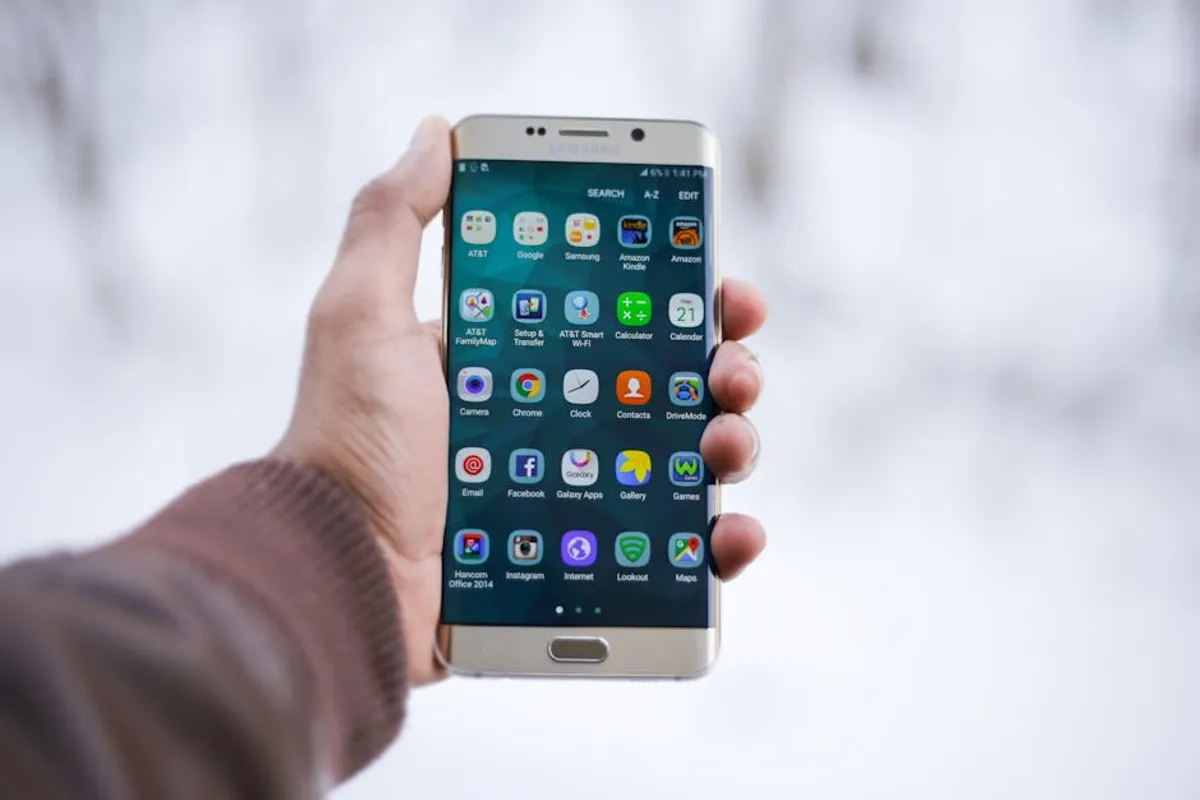
Understanding and managing firmware on Samsung devices is a foundational skill for anyone looking to optimize device performance, address software issues, or access the latest features. Firmware is the specific class of software that provides low-level control for the device's hardware, acting as the bridge between the operating system and the physical components. For beginners, interacting with firmware can seem daunting due to the technical nature and potential risks involved. However, with precise guidance and an understanding of the underlying processes, users can confidently perform firmware operations to maintain or restore their Samsung devices, ensuring they operate efficiently and securely. For beginners, understanding how to safely update your device's firmware is a key step in managing your Samsung device.
What is Samsung Firmware?
Samsung firmware is the permanent software programmed into a read-only memory (ROM) of a Samsung device, such as a smartphone or tablet. It is distinct from the Android operating system, though the two work in tandem. Firmware contains the instructions for how the device's hardware components—like the processor, camera, and display—should function. It controls the basic input/output operations, manages power, and initiates the boot-up sequence. When you update your device's software, you are often updating a combination of the Android OS and the underlying firmware.
Reasons to Update or Change Firmware
There are several practical reasons why a Samsung device owner might need to update or even change their device's firmware. Each reason serves a specific purpose, contributing to the device's longevity, security, and user experience.
- Performance Enhancements: Firmware updates frequently include optimizations that improve device speed, battery life, and overall responsiveness. These adjustments can make older devices feel more current.
- Bug Fixes: Software bugs can lead to crashes, freezes, or unexpected behavior. Firmware updates are critical for patching these known issues, leading to a more stable user experience.
- Security Patches: As new vulnerabilities are discovered, manufacturers release firmware updates to patch these security gaps. Keeping firmware current is essential for protecting personal data and device integrity against exploits.
- New Features and Functionality: Sometimes, firmware updates introduce new features, improve existing ones, or enable compatibility with new accessories or services. This can extend the utility of the device without requiring new hardware.
- Device Restoration: In cases where a device is experiencing severe software problems, such as being stuck in a boot loop or failing to start (often referred to as "soft-bricking"), flashing official firmware can restore the device to a working state.
Understanding Firmware File Components
When downloading official Samsung firmware, it typically comes as a package containing several distinct files, each serving a critical function during the flashing process. Recognizing these components helps in understanding their roles and ensures correct installation. For those interested in the technical details, understanding the components involved in downloading official Samsung firmware is quite illuminating.
- AP (Application Processor): This is the largest file, containing the main Android system, recovery, and bootloader. It's the core of the operating system.
- BL (Bootloader): The bootloader is the first code that runs when your device starts. It initializes the hardware and boots the Android operating system.
- CP (Modem/Phone): This file manages the device's cellular modem, handling network connectivity, Wi-Fi, Bluetooth, and GPS.
- CSC (Consumer Software Customization): The CSC file contains region-specific and carrier-specific data, including language packs, network settings, and pre-installed applications (bloatware). There are typically two versions:
- CSC: Flashing this version performs a factory reset, wiping all user data.
- HOME_CSC: Flashing this version attempts to preserve user data, making it suitable for updates where data retention is desired.
Pro Tip: Always back up all critical data from your Samsung device before initiating any firmware operation. While HOME_CSC aims to preserve data, unforeseen issues can still lead to data loss. A full backup ensures you can restore your device to its previous state if complications arise.
Essential Preparations Before Flashing Firmware
Before attempting to flash new firmware onto a Samsung device, several preparatory steps are crucial to minimize risks and ensure a smooth process. Skipping these can lead to device instability or even permanent damage.
- Backup All Data: Use Samsung Smart Switch, Google Drive, or other cloud services to back up photos, contacts, apps, and other essential information. This is the most critical step.
- Charge Device Fully: Ensure your Samsung device has at least an 80% charge, ideally 100%. A power interruption during flashing can corrupt the firmware and brick the device.
- Install Samsung USB Drivers: Your computer needs the correct drivers to communicate with your Samsung device. These are usually available from Samsung's official support website. Without them, the flashing tool will not recognize your device.
- Obtain Official Firmware: Download the correct firmware package for your specific device model and region. Using incorrect firmware can render your device unusable. Firmware files are typically available from official Samsung support portals or reputable community archives that maintain verified copies of official releases.
- Download Flashing Tool: The primary tool for flashing firmware on Samsung devices is commonly referred to as Odin. This utility facilitates the transfer of firmware files from a computer to the device's internal storage. Ensure you download a stable, verified version.
- Disable Antivirus/Firewall: Temporarily disable any antivirus software or firewalls on your computer, as they can sometimes interfere with the flashing process or block the connection to your device.
General Steps for Flashing Samsung Firmware
The process of flashing firmware involves a sequence of steps that must be followed precisely. Deviations can lead to errors or device damage.
- Extract Firmware Files: After downloading, extract the firmware archive to a readily accessible folder on your computer. You should see the AP, BL, CP, and CSC files.
- Boot Device into Download Mode: Power off your Samsung device. Then, simultaneously press and hold the Volume Down, Home (or Bixby on newer models), and Power buttons. Release them when you see a warning screen, then press Volume Up to enter Download Mode.
- Connect Device to PC: Using a high-quality USB cable, connect your device in Download Mode to your computer.
- Launch Flashing Tool: Open the Odin utility. A successful connection will be indicated by a message like "Added!!" in the log window and a blue or green indicator in one of the ID:COM boxes.
- Load Firmware Files: In Odin, click on the respective buttons (BL, AP, CP, CSC) and select the corresponding extracted firmware files. For the CSC file, choose HOME_CSC if you wish to retain data, or the regular CSC if a factory reset is acceptable or necessary.
- Configure Options: Ensure that only "Auto Reboot" and "F. Reset Time" are checked in the Options tab. Do not modify any other settings unless specifically instructed by an expert guide for advanced operations.
- Initiate Flashing: Click the "Start" button in Odin. The process will begin, displaying progress in the log window. Do not disconnect the device or interact with the computer until the process completes.
- Device Reboot: Once completed, Odin will display a "PASS!" message, and your device will automatically reboot. The first boot after a firmware flash can take longer than usual.
Maintaining Device Integrity After Firmware Operations
Successfully flashing firmware is not the final step. To ensure the long-term integrity and performance of your Samsung device, consider these post-operation actions. Verify that the device boots correctly and all functionalities are operational. If you used the standard CSC file, you will need to set up your device as new and restore your backed-up data. For devices where a HOME_CSC was used, check that all data and settings are as expected. Regularly check for official software updates through your device's settings to stay on the latest, most secure version of firmware. Adhering to these practices minimizes future software conflicts and maximizes device lifespan.
Frequently Asked Questions
What is the difference between stock ROM and custom ROM?
Stock ROM refers to the official firmware released by Samsung, identical to what comes pre-installed on your device. Custom ROMs are modified versions of Android firmware developed by third-party developers, often offering additional features, performance tweaks, or a different user interface than the stock version.
Can I downgrade my Samsung firmware?
Downgrading firmware on Samsung devices is generally not recommended and can be technically challenging. Samsung often implements anti-rollback protection, which prevents flashing older firmware versions for security reasons. Attempting to bypass this can result in permanent device damage.
What happens if the flashing process fails?
If the flashing process fails (e.g., due to a disconnected cable, power outage, or incorrect firmware), your device might get stuck in a boot loop, fail to boot entirely, or display an error message. This is often referred to as a "soft brick." In many cases, it can be resolved by re-attempting the flashing process with the correct firmware and ensuring all prerequisites are met.
Is it safe to flash firmware from unofficial sources?
Flashing firmware from unofficial or unverified sources carries significant risks, including malware infection, device instability, performance issues, or even permanent damage (hard brick). Always prioritize official Samsung channels or highly reputable community archives known for distributing verified, official firmware files.



